
How do you get donors to stop scrolling and pay attention to your classroom fundraising efforts? Adding a compelling banner photo to your AdoptAClassroom.org® Classroom Page is an easy way to start.
What is a banner photo?
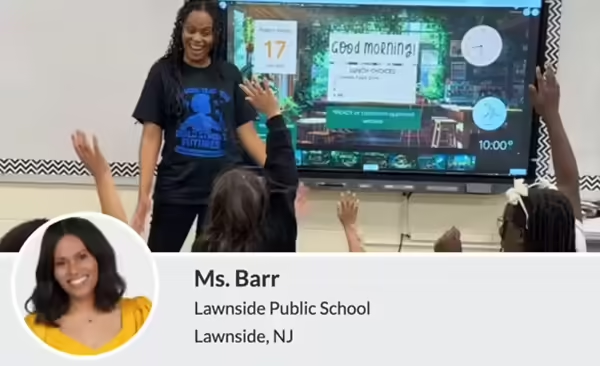
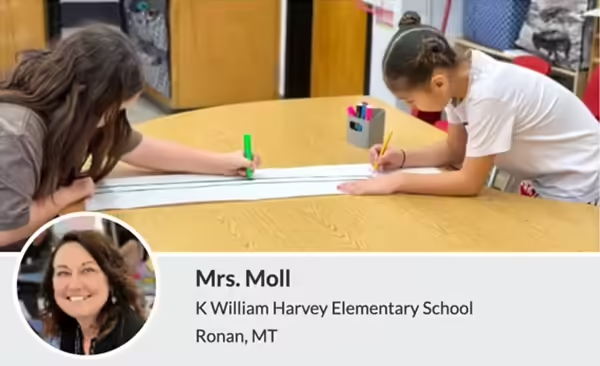
Your banner photo appears at the top of your AdoptAClassroom.org Classroom Page, directly above your name and school. It’s one of the first things visitors to your classroom page see and can help create a good impression for donors before they read a single word.
How do I choose a great banner photo?


Banner Image Sizing: Mobile vs. Desktop
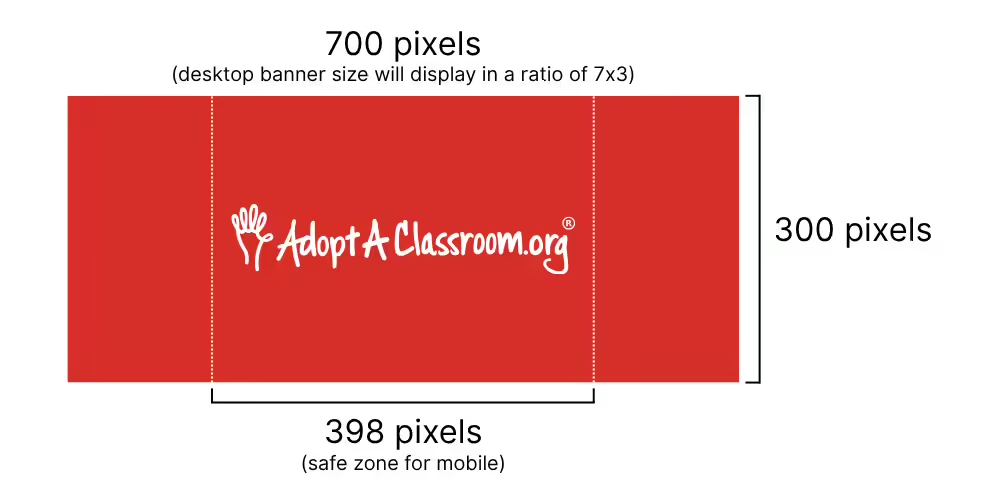
On a desktop computer, your banner photo is displayed at 700×300 pixels. But mobile devices usually show a narrower view of 398×300 pixels.
This means that items towards the edges of your banner photo may not be visible to viewers on a cell phone or tablet.
To avoid an awkward mobile banner, make sure the most important parts of your photo are centered.
Here’s an example of an AdoptAClassroom.org Classroom Page banner photo that looks good on desktop, but less stellar on mobile.
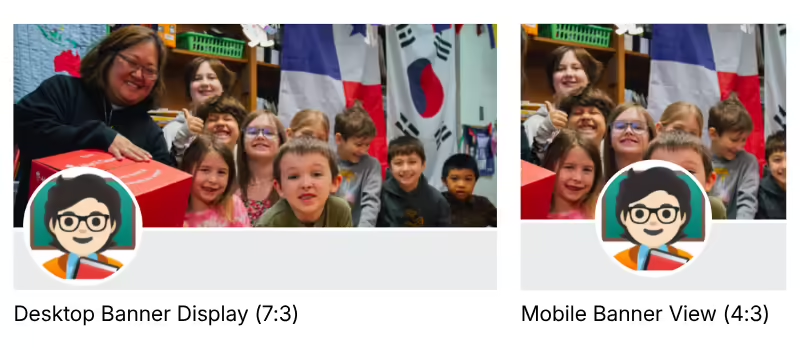
Desktop photo (left image): Shows the entire class, plus some supplies in the background.
Mobile photo (right image): The teacher isn’t visible, and the profile photo covers the face of the student in front.
You can preview what mobile donors will see by opening your classroom page link on your own phone. This video shows you exactly how to find and copy your AdoptAClassroom.org Classroom Page link.
Questions? Need assistance?
Our Teacher Services Team is happy to help. Reach out to them at [email protected].