Spotlight Fund Classroom Page Instructions
Note: The “Edit Classroom Page” feature does NOT autosave. We strongly encourage you to write your first draft in a word processing program that automatically saves, such as Google Docs. Then copy and paste the final product into your classroom page when it’s ready.
You must click “Save” at the bottom of the “Edit Classroom Page” screen to save your changes.
1. Upload a profile photo
a. It should be clear, compelling, and/or engaging
ii. Do not use photos that are blurry, pixelated, or otherwise hard to see
iii. Profile should not include student faces
2. Upload a banner photo
b. Your banner photo should be representative of your classroom, school, or subject area, and be clear, compelling, and engaging.
c. Mobile phones show a smaller portion of your banner photo (compared to desktop computers). Choose a banner image that looks good at different sizes. You can find the exact dimensions for desktop and mobile in the chart below.
i. Desktop Banner Size: 700×300 pixels
ii. Mobile Banner Safe Zone: 398×300 pixels

d. It’s important that you protect student privacy. If your banner photo includes recognizable student faces, each student’s guardian must submit a Student Media Release Form.
i. You can also strategically take photos that show students without using their faces (ex – back of students’ heads, hands, etc.).
ii. Examples and downloadable media release forms are available on our blog.
e. Uploading a photo constitutes your assurance that you have obtained proper written permission from the guardian of each student whose face is recognizable.
Examples from AdoptAClassroom.org Teachers:
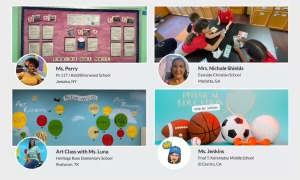
Check our our blog on How To Choose Your AdoptAClassroom.org Banner Photo for more examples and tips.
3. Make sure the following details are accurate and up-to-date:
b. Grade(s)
c. Fundraising Goal
ii. Note: We recently made a change so that the amount of funds raised shown on your classroom page resets every July 1; that way, the figure reflects what you’ve raised in the current school year.
iii. If you’d like to reset the amount shown on your Classroom Page at another time of year, please contact us.
4. In the “About My Classroom” section of your Teaching Story:
5. In the “What We Need” section:
ii. Share your idea/project/initiative related to the Spotlight Fund topic that you could bring to life, if only you had the items you need.
iii. Tell a story about a student (or a composite – be sure to protect privacy) whose needs would be served by having access to those supplies.
c. Remember that if your page is public, individual donors will be able to find your page with our “Fund A Teacher” tool.
6. In the “Why We Need Your Help” section:
Remember to click “Save” to save your changes.
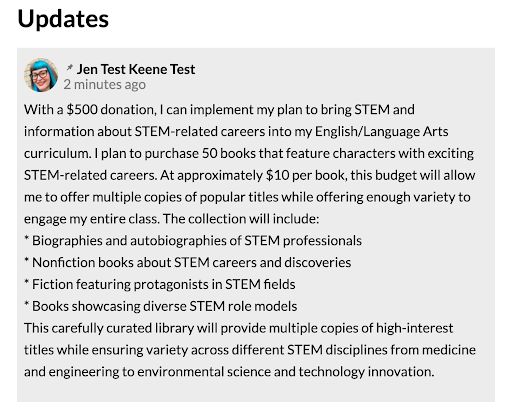
7. Post an “Update” that states what Spotlight Fund-topic related items you would purchase with $500.
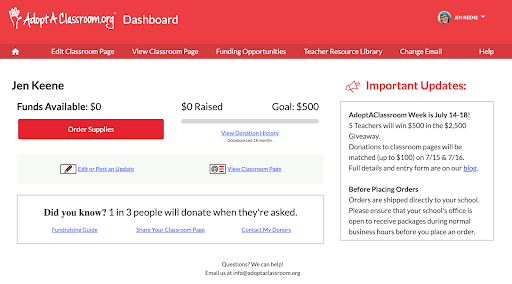
c. Mention specific items (or types of items) needed to bring your Spotlight Fund-related idea/project/initiative to life.
d. Keep in mind the $500 amount. Spotlight Fund grants seek to award funds for problems that can be solved or ideas that can be successfully implemented for $500.
f. Example